0. 들어가면서
docker & k8s 스터디 세 번째 파트입니다.
이번에는 ubuntu에 homebrew를 설치하여 실습을 진행하도록 하겠습니다.
sudo apt-get install build-essential curl file git

/bin/bash -c "$(curl -fsSL https://raw.githubusercontent.com/Homeb  rew/install/HEAD/install.sh)"
설치가 완료되면, next steps에 있는 내용을 따릅니다.
(제가 생성한 사용자 계정명은 min 입니다. 생성한 사용자명에 따라 달라집니다)
==> Next steps:
- Run these commands in your terminal to add Homebrew to your PATH:
    echo >> /home/min/.bashrc
    echo 'eval "$(/home/linuxbrew/.linuxbrew/bin/brew shellenv)"' >> /home/min/.bashrc                                        bashrc
    eval "$(/home/linuxbrew/.linuxbrew/bin/brew shellenv)"
- Install Homebrew's dependencies if you have sudo access:
    sudo apt-get install build-essential
  For more information, see:
    https://docs.brew.sh/Homebrew-on-Linux
- We recommend that you install GCC:
    brew install gcc
- Run brew help to get started
- Further documentation:
    https://docs.brew.sh
위 내용에 따라 아래 명령어를 실행하도록 합니다.
    echo >> /home/min/.bashrc
    echo 'eval "$(/home/linuxbrew/.linuxbrew/bin/brew shellenv)"' >> /home/min/.bashrc                                        bashrc
    eval "$(/home/linuxbrew/.linuxbrew/bin/brew shellenv)"

    brew install gcc
k8s 관련 라이브러리 및 플러그인을 설치합니다.
# Install Kind
brew install kind
kind --version

# Install kubectl
brew install kubernetes-cli
kubectl version --client=true

# Install Helm
brew install helm
helm version
만약 도커 설치가 필요하다면, 설치를 진행합니다.
# Add Docker's official GPG key:
sudo apt-get update
sudo apt-get install ca-certificates curl
sudo install -m 0755 -d /etc/apt/keyrings
sudo curl -fsSL https://download.docker.com/linux/ubuntu/gpg -o /etc/apt/keyrings/docker.asc
sudo chmod a+r /etc/apt/keyrings/docker.asc

# Add the repository to Apt sources:
echo \
  "deb [arch=$(dpkg --print-architecture) signed-by=/etc/apt/keyrings/docker.asc] https://download.docker.com/linux/ubuntu \
  $(. /etc/os-release && echo "${UBUNTU_CODENAME:-$VERSION_CODENAME}") stable" | \
  sudo tee /etc/apt/sources.list.d/docker.list > /dev/null
sudo apt-get update

# 최신 Docker 패키지 설치
sudo apt-get install docker-ce docker-ce-cli containerd.io docker-buildx-plugin docker-compose-plugin

# 설치 확인
docker --version

# 권한 부여
sudo groupadd docker
sudo usermod -aG docker $USER
newgrp docker

# 권한 확인
docker ps

# 부팅 시, 도커 자동 시작
sudo systemctl enable docker.service
sudo systemctl enable containerd.service
아래 스크립트를 통하여 실습 환경을 구성합니다.
(Control Plane 1대 + Worker Node 1대)
# '컨트롤플레인, 워커 노드 1대' 클러스터 배포 : 파드에 접속하기 위한 포트 맵핑 설정
cat <<EOT> kind-2node.yaml
kind: Cluster
apiVersion: kind.x-k8s.io/v1alpha4
nodes:
- role: control-plane
- role: worker
  extraPortMappings:
  - containerPort: 30000
    hostPort: 30000
    listenAddress: "0.0.0.0" # Optional, defaults to "0.0.0.0"
    protocol: tcp # Optional, defaults to tcp
  - containerPort: 30001
    hostPort: 30001
EOT

kind create cluster --config kind-2node.yaml

# 배포 확인
kind get clusters
kind get nodes

# 노드 확인
kubectl get nodes -o wide

# 노드에 Taints 정보 확인
kubectl describe node kind-control-plane | grep Taints
Taints:             node-role.kubernetes.io/control-plane:NoSchedule

kubectl describe node kind-worker | grep Taints
Taints:             <none>

# 컨테이너 확인 : 컨테이너 갯수, 컨테이너 이름 확인
# kind yaml 에 포트 맵핑 정보 처럼, 자신의 PC 호스트에 30000 포트 접속 시, 워커노드(실제로는 컨테이너)에 TCP 30000 포트로 연결
# 즉, 워커노드에 NodePort TCP 31000 설정 시 자신의 PC 호스트에서 접속 가능!
docker ps
docker port kind-worker
30000/tcp -> 0.0.0.0:30000
30001/tcp -> 0.0.0.0:30001
kube-ops-view를 설치하여 pod을 실시간으로 확인할 수도 있습니다.
# kube-ops-view
# helm show values geek-cookbook/kube-ops-view
helm repo add geek-cookbook https://geek-cookbook.github.io/charts/
helm install kube-ops-view geek-cookbook/kube-ops-view --version 1.2.2 --set service.main.type=NodePort,service.main.ports.http.nodePort=30000 --set env.TZ="Asia/Seoul" --namespace kube-system

# 설치 확인
kubectl get deploy,pod,svc,ep -n kube-system -l app.kubernetes.io/instance=kube-ops-view

# kube-ops-view 접속 URL 확인 (1.5 , 2 배율)
echo -e "KUBE-OPS-VIEW URL = http://localhost:30000/#scale=2"
1. k8s 가용성 확보
쿠버네티스에서 가용성을 확보하기 위한 여러 전략이 있습니다.
HPA, VPA, CA, ...
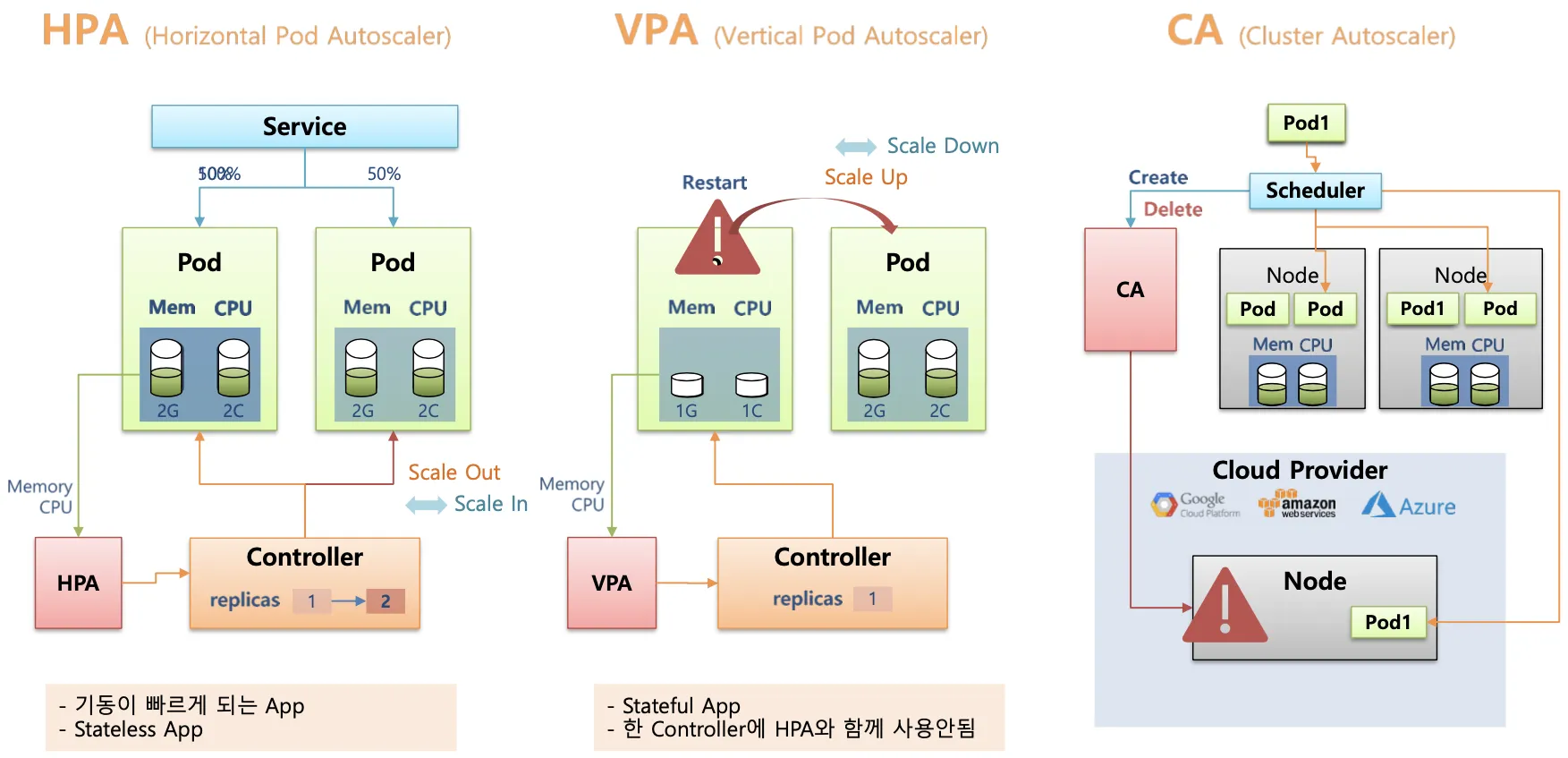
해당 전략들에 대해 더 자세히 확인할 수 있도록 Metrics Server를 설치합니다.
쿠버네티스에 내장된 확장 파이프라인의 컨테이너 지표를 수집합니다.
# Metrics Server 설치
kubectl apply -f https://github.com/kubernetes-sigs/metrics-server/releases/latest/download/components.yaml

# Metrics Server SSL 무시
kubectl patch deployment metrics-server -n kube-system --type=json \
  -p='[{"op": "add", "path": "/spec/template/spec/containers/0/args/-", "value": "--kubelet-insecure-tls"}]'

# Metrics Server 배포 확인
kubectl get pods -n kube-system -l k8s-app=metrics-server

# 쿠버네티스 리소스 자원 사용량 확인
kubectl top node
kubectl top pods -A

# CPU, Memory 내림차순
kubectl top pods -A --sort-by=cpu
kubectl top pods -A --sort-by=memory
1.1 HPA
HPA (Horizontal Pod Autoscaling) : Pod 수평 확장 (스케일 In - Out)
애플리케이션 부하(Load)에 따라 Pod 개수를 자동으로 늘리거나 줄이는 기능
모니터링 대상: CPU, Memory, 사용자 정의 지표
Metrics Server 가 감시한 지표를 활용하여 설정된 임계치를 초과하면 Replica 수 조정
기본 구성
apiVersion: autoscaling/v2
kind: HorizontalPodAutoscaler
metadata:
  name: hpa-sample
spec:
  scaleTargetRef:          # Scale 타겟 지정
    apiVersion: apps/v1
    kind: Deployment
    name: my-app           # Deployment 이름
  minReplicas: 2           # 최소 Pod
  maxReplicas: 10          # 최대 Pod
  metrics:                 # Scale 기준 지표 설정
    - type: Resource
      resource:
        name: cpu
        target:
          type: Utilization
          averageUtilization: 50  # CPU 사용률 50% 기준
    - type: Resource
      resource:
        name: memory
        target:
          type: Utilization
          averageUtilization: 70  # 메모리 사용률 70% 기준
HPA 구성
Deploy배포 사용
cat << EOF >> hpa-nginx.yaml
apiVersion: apps/v1
kind: Deployment
metadata:
  name: hpa-nginx
spec:
  replicas: 1
  selector:
    matchLabels:
      app: hpa-nginx
  template:
    metadata:
      labels:
        app: hpa-nginx
    spec:
      containers:
      - name: hpa-nginx
        image: nginx
        resources:
          requests:
            cpu: 50m
          limits:
            cpu: 100m
        ports:
        - containerPort: 80
---
apiVersion: v1
kind: Service
metadata:
  name: hpa-nginx
  labels:
    app: hpa-nginx
spec:
  ports:
  - port: 80
  selector:
    app: hpa-nginx
EOF

cat hpa-nginx.yaml

# Deployment 배포
kubectl apply -f hpa-nginx.yaml

kubectl get deploy,pod
HPA 구성
# HPA 생성
kubectl autoscale deployment hpa-nginx --cpu-percent=50 --min=1 --max=10

# HPA 확인
kubectl get hpa
...
NAME        REFERENCE              TARGETS       MINPODS   MAXPODS   REPLICAS   AGE
hpa-nginx   Deployment/hpa-nginx   cpu: 0%/50%   1         10        1          17s
....

# HPA 상세 정보 확인
kubectl describe hpa
apiVersion: autoscaling/v2
kind: HorizontalPodAutoscaler
metadata:
name: hpa-nginx
spec:
scaleTargetRef:
apiVersion: apps/v1
kind: Deployment
name: hpa-nginx
minReplicas: 1
maxReplicas: 10
metrics:
- type: Resource
resource:
name: cpu
target:
type: Utilization
averageUtilization: 50Pod 부하 생성
# 터미널 1번
while true; do kubectl get hpa; kubectl top pods; sleep 1s; done

# 터미널 2번
kubectl run -i --tty load-generator --rm --image=busybox:1.28 --restart=Never -- /bin/sh -c "while true; do wget -q -O- http://hpa-nginx.default.svc.cluster.local; done"

# 실습 종료 후 리소스 삭제
kubectl delete hpa --all
kubectl delete -f hpa-nginx.yaml
1.2. VPA
VPA (Vertical Pod Autoscaling) : Pod 수직 확장 (스케일 Up)
Pod 의 리소스 요청값(Request) 을 자동으로 조정하는 기능
적용 대상 : Request (CPU, Memory)
Pod 의 개수를 늘리는 HPA 와 다르게 Pod 의 리소스 크기를 조정
VPA Recommender 에 의해 최적의 리소스 상태를 찾아서 조정
하나의 Deployment 에 HPA, VPA 를 같이 사용할 수 없음
Kubernetes v1.33 버전 부터는 기본 활성화 상태
but, kind 는 현재 v1.32 까지만 사용가능하므로 별도 controller 설치 필요
기본 구성
apiVersion: autoscaling.k8s.io/v1
kind: VerticalPodAutoscaler
metadata:
  name: my-app-vpa
spec:
  targetRef:                   # Scale 대상
    apiVersion: apps/v1
    kind: Deployment
    name: my-app               # Deployment 명칭
  updatePolicy:
    updateMode: "Auto"         # VPA Recommender 에 의해 자동 조정 활성화
  resourcePolicy:
    containerPolicies:
      - containerName: my-app-container # Container 명칭 "*" 사용 가능
        minAllowed:            # 컨테이너가 할당받을 수 있는 최소 리소스
          cpu: "200m"
          memory: "512Mi"
        maxAllowed:            # 컨테이너가 할당받을 수 있는 최대 리소스
          cpu: "2"
          memory: "2Gi"
VPA배포
# EKS Workshop 소스 사용
git clone https://github.com/kubernetes/autoscaler.git

# VPA 배포
cd autoscaler/vertical-pod-autoscaler/
./hack/vpa-up.sh

# VPA Controller 확인
kubectl get pods -n kube-system | grep vpa

# VPA 제거
./hack/vpa-down.sh
VPA 테스트 - 0.1 cpu 를 요청한 2개 Pod 배포 (실제 사용량보다 부족한 상태)
apiVersion: "autoscaling.k8s.io/v1"
kind: VerticalPodAutoscaler
metadata:
  name: hamster-vpa
spec:
  targetRef:
    apiVersion: "apps/v1"
    kind: Deployment
    name: hamster
  resourcePolicy:
    containerPolicies:
      - containerName: '*'
        minAllowed:
          cpu: 100m
          memory: 50Mi
        maxAllowed:
          cpu: 1
          memory: 500Mi
        controlledResources: ["cpu", "memory"]
---
apiVersion: apps/v1
kind: Deployment
metadata:
  name: hamster
spec:
  selector:
    matchLabels:
      app: hamster
  replicas: 2
  template:
    metadata:
      labels:
        app: hamster
    spec:
      securityContext:
        runAsNonRoot: true
        runAsUser: 65534 # nobody
      containers:
        - name: hamster
          image: registry.k8s.io/ubuntu-slim:0.14
          resources:
            requests:
              cpu: 100m
              memory: 50Mi
          command: ["/bin/sh"]
          args:
            - "-c"
            - "while true; do timeout 0.5s yes >/dev/null; sleep 0.5s; done"
# 터미널 1번
while true;
do date "+%Y-%m-%d %H:%m:%S";
kubectl get pod -l app=hamster;
kubectl get vpa;
kubectl describe pod | grep "Requests:" -A2;
echo "==============";
sleep 5s;
done
# 터미널 2번
kubectl apply -f examples/hamster.yaml
# 자원 삭제
kubectl delete -f examples/hamster.yaml
2. 어플리케이션 변수 관리
2.1. ConfigMap
ConfigMap을 통해,
쿠버네티스 애플리케이션의 구성파일이나 환경설정을 Key-Value 형태로 관리할 수 있습니다.
애플리케이션의 설정 정보를 외부에서 관리하고 Pod 와 컨테이너에서 참조할 수 있습니다.
기본구성은 다음과 같습니다.
# ConfigMap 샘플 구성
apiVersion: v1
kind: ConfigMap
metadata:
  name: my-config # ConfigMap 명칭
data:
  key1: value1    # Key : Value 형태 값 주입
  key2: value2
# ConfigMap 사용 예시
apiVersion: v1
kind: Pod
metadata:
name: my-app
spec:
containers:
- name: my-container
image: my-image
env:
- name: MY_CONFIG_KEY # 컨테이너에서 사용할 변수 Key 값
valueFrom:
configMapKeyRef:
name: my-config # 사용할 ConfigMap의 이름
key: key1 # ConfigMap 내의 키 -> 값: value1ConfigMap 기본 활용
cat <<EOF | kubectl apply -f -
apiVersion: v1
kind: ConfigMap
metadata:
  name: mysql
data:
  DBNAME: mydatabase
---
apiVersion: v1
kind: Pod
metadata:
  name: nginx-configmap
spec:
  containers:
  - image: nginx
    name: nginx-configmap
    env:
    - name: DB
      valueFrom:
        configMapKeyRef:
          name: mysql
          key: DBNAME
EOF

# 오브젝트 확인
kubectl get cm,pod

# 상세 정보 조회
kubectl describe cm mysql
kubectl describe pod nginx-configmap

# pod 내부 변수 확인
kubectl exec -it nginx-configmap -- /bin/bash -c env
...
DB=mydatabase
...

# 리소스 삭제
kubectl delete pod --all
kubectl delete cm nginx-configmap
ConfigMap 으로 설정 파일 관리
# 테스트 파일 생성
cat << EOF >> config-deploy.yaml
apiVersion: apps/v1
kind: Deployment
metadata:
  name: nginx-configmap-deploy
spec:
  replicas: 2
  selector:
    matchLabels:
      app: nginx-configmap
  template:
    metadata:
      labels:
        app: nginx-configmap
    spec:
      containers:
      - name: nginx
        image: nginx
        ports:
        - containerPort: 80
        volumeMounts:
        - name: config-volume
          mountPath: /etc/nginx/nginx.conf
          subPath: nginx.conf
      volumes:
      - name: config-volume
        configMap:
          name: nginx-config
---
apiVersion: v1
kind: Service
metadata:
  name: nginx-service
spec:
  selector:
    app: nginx-configmap
  ports:
    - protocol: TCP
      port: 80
      targetPort: 80
      nodePort: 31001
  type: NodePort
EOF

cat << EOF >> configmap.yaml
apiVersion: v1
kind: ConfigMap
metadata:
  name: nginx-config
data:
  nginx.conf: |
    events {}
    http {
        server {
            listen 80;
            location / {
                return 200 'Hello from nginx configmap!';
            }
        }
    }
EOF
리소스를 배포하여 구성관리가 진행되고 있는지 확인합니다.
kubectl apply -f configmap.yaml -f config-deploy.yaml

#
kubectl get cm,deploy,pod
kubectl describe deploy
...
    Mounts:
      /etc/nginx/nginx.conf from config-volume (rw,path="nginx.conf")
  Volumes:
   config-volume:
    Type:          ConfigMap (a volume populated by a ConfigMap)
    Name:          nginx-config
    Optional:      false
...

# Nginx 접속
open http://localhost:31001

# Nginx ConfigMap 변경
vim configmap.yaml
...
return 200 'Modify from nginx configmap!';
...

#
kubectl apply -f configmap.yaml

# pod 재시작
kubectl rollout restart deploy nginx-configmap-deploy

# 리소스 삭제
kubectl delete -f configmap.yaml -f config-deploy.yaml
ConfigMap 변경 시 Pod를 수동으로 재배포해주어야 하는 불편함이 있습니다.
Reloader를 통해 이를 자동화할 수 있습니다.
https://github.com/stakater/Reloader/tree/master
GitHub - stakater/Reloader: A Kubernetes controller to watch changes in ConfigMap and Secrets and do rolling upgrades on Pods wi
A Kubernetes controller to watch changes in ConfigMap and Secrets and do rolling upgrades on Pods with their associated Deployment, StatefulSet, DaemonSet and DeploymentConfig – [✩Star] if you'...
github.com
(ConfigMap, Secret 의 변동 사항을 주기적으로 확인해서 자동으로 Rollout 을 해주는 오픈소스 도구)
2.2. Secret
secret는 쿠버네티스에서 민감 정보를 안전하게 관리하는 객체입니다.
(비밀번호, 토큰, SSH 키 등)
ConfigMap 과 달리 Base64 로 인코딩된 형태로 데이터 저장합니다.
주로 비밀번호, API 키 등의 민감정보 저장에 사용합니다.
ConfigMap 과 동일하게 Pod 의 환경 변수나 파일로 주입 가능합니다.
기본구성
# Secret 샘플
apiVersion: v1
kind: Secret
metadata:
  name: my-secret
type: Opaque
data:
  username: bXl1c2Vy  # base64로 인코딩된 값
  password: bXlwYXNzd29yZA==  # base64로 인코딩된 값
# Secret 사용 예시
apiVersion: v1
kind: Pod
metadata:
name: my-app
spec:
containers:
- name: my-container
image: my-image
env:
- name: DB_USER # Container 에서 사용할 변수명
valueFrom:
secretKeyRef:
name: my-secret # 사용할 Secret의 이름
key: username # Secret 내의 키
- name: DB_PASSWORD
valueFrom:
secretKeyRef:
name: my-secret # 사용할 Secret의 이름
key: password # Secret 내의 키
...
# 마운트 방법
volumeMounts:
- name: secret-volume # Volume 명칭
mountPath: /etc/secrets # 컨테이너 내부 마운트 위치
volumes:
- name: secret-volume # Volume 명칭
secret:
secretName: my-secret # 사용할 Secret의 이름활용
cat <<EOF | kubectl apply -f -
apiVersion: v1
kind: Secret
metadata:
  name: secret-test
type: Opaque
data:
  username: YWRtaW4=  # 'admin'을 base64 인코딩한 값
  password: cGFzc3dvcmQ=  # 'password'를 base64 인코딩한 값
EOF

# Base64 인코딩 방법
echo -n 'admin' | base64
echo -n 'password' | base64

#
cat <<EOF | kubectl apply -f -
apiVersion: v1
kind: Pod
metadata:
  name: secret-pod
spec:
  containers:
  - name: nginx
    image: nginx
    env:
    - name: DB_USER
      valueFrom:
        secretKeyRef:
          name: secret-test
          key: username
    - name: DB_PASS
      valueFrom:
        secretKeyRef:
          name: secret-test
          key: password
EOF

#
kubectl get pod,secret

# 상세 정보 조회
kubectl describe secret secret-test
kubectl describe pod secret-pod

# pod 내부 변수 확인
kubectl exec -it secret-pod -- /bin/bash -c env
...
DB_USER=admin
DB_PASS=password
...

# 리소스 삭제
kubectl delete pod --all
kubectl delete secret secret-test
단, base64가 완벽히 암호화된 것이 아니기에 주의가 필요합니다.
따라서, 기존 Base64 로 인코딩 되어 저장하는 Secret 이 아닌 암호화 되어 저장하는 Sealed Secret을 사용할 수 있습니다.
Sealed Secret 은,
Code Repository (Git) 에 암호화된 Secret 이 올라가기 때문에,
GitOps Flow 를 그대로 사용할 수 있는 장점이 있습니다.
Client Side(암호화) - Server Side (복호화)
# Mac Brew 설치 (Client-Side)
brew install kubeseal

# Server-Side 설치 - SealedSecret Controller
helm repo add sealed-secrets https://bitnami-labs.github.io/sealed-secrets
helm install my-release sealed-secrets/sealed-secrets

# SealedSecret Controller 조회
kubectl get pods -l app.kubernetes.io/name=sealed-secrets

# Secret 생성
kubectl create secret generic mysecret \
  --from-literal hello=world \
  --dry-run=client \
  -o yaml > mysecret.yaml

#
cat mysecret.yaml

# base64 디코딩
grep 'hello:' mysecret.yaml | awk '{print $2}' | base64 --decode

# Sealed Secret 생성
cat mysecret.yaml | \
  kubeseal \
   --controller-name my-release-sealed-secrets \
   --controller-namespace default -o yaml > mysealed-secret.yaml

# Sealed Secret 암호화 적용 확인
cat mysealed-secret.yaml
grep 'hello:' mysealed-secret.yaml | awk '{print $2}' | base64 --decode

#
kubectl apply -f mysealed-secret.yaml
kubectl get secret

# secret 확인
kubectl get secret mysecret -o json
kubectl get secret mysecret -o jsonpath="{.data.hello}" | base64 -d
3. 네트워크
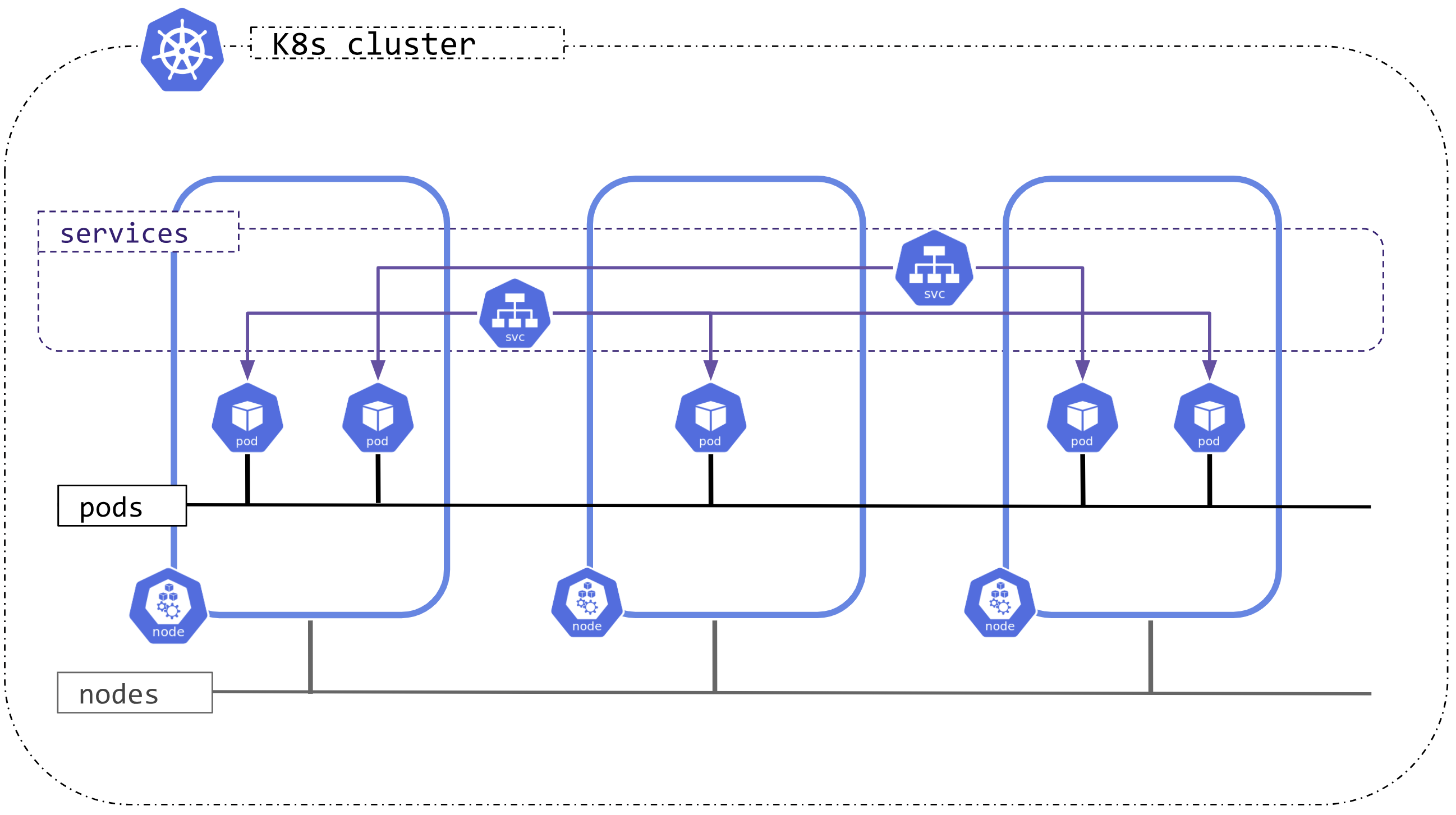
네트워킹은 쿠버네티스의 핵심으로,
구성 요소는 아래와 같습니다.
Service
외부와 접하는 단일 엔드포인트
서비스 뒷단의 애플리케이션으로 외부 트래픽을 전송
ClusterIP
쿠버네티스 클러스터 범위의 가상 IP 부여
클러스터 내부에서만 ClusterIP 로 접근 가능
서비스 타입을 지정하지 않을 경우 기본값
# 어플리케이션 배포
cat << EOF >> cluster-pod.yaml
apiVersion: v1
kind: Pod
metadata:
  name: cluster-pod-1
  labels:
    app: cluster-pod
spec:
  containers:
  - name: container
    image: traefik/whoami
---
apiVersion: v1
kind: Pod
metadata:
  name: cluster-pod-2
  labels:
    app: cluster-pod
spec:
  containers:
  - name: container
    image: traefik/whoami
EOF

# Test 파드
cat << EOF >> netshoot-pod.yaml
apiVersion: v1
kind: Pod
metadata:
  name: netshoot-pod
spec:
  containers:
  - name: netshoot-pod
    image: nicolaka/netshoot
    command: ["tail"]
    args: ["-f", "/dev/null"]
EOF

# ClusterIP 서비스 생성
cat <<EOF>> cluster-svc.yaml
apiVersion: v1
kind: Service
metadata:
  name: cluster-svc
spec:
  type: ClusterIP
  selector:
    app: cluster-pod
  ports:
    - name: cluster
      port: 8080
      targetPort: 80
EOF

# 배포
kubectl apply -f cluster-pod.yaml -f cluster-svc.yaml -f netshoot-pod.yaml
# 파드 대역 확인
kubectl get nodes -o jsonpath='{.items[*].spec.podCIDR}'
...
10.244.0.0/24 10.244.1.0/24
...
# SVC 대역 확인
kubectl -n kube-system get pods -l component=kube-controller-manager -o yaml | grep service-cluster-ip-range
...
--service-cluster-ip-range=10.96.0.0/16
...
# 확인
kubectl get pod -o wide
...
NAME READY STATUS RESTARTS AGE IP NODE NOMINATED NODE READINESS GATES
cluster-pod-1 1/1 Running 0 8m20s 10.244.1.66 kind-worker <none> <none>
cluster-pod-2 1/1 Running 0 8m20s 10.244.1.65 kind-worker <none> <none>
netshoot-pod 1/1 Running 0 8m20s 10.244.1.67 kind-worker <none> <none>
...
# 서비스 확인
kubectl get svc cluster-svc
...
NAME TYPE CLUSTER-IP EXTERNAL-IP PORT(S) AGE
cluster-svc ClusterIP 10.96.138.114 <none> 8080/TCP 9m18s
...
# Endpoint 확인 (Pod IP:Port)
kubectl get endpoints cluster-svc
...
NAME ENDPOINTS AGE
cluster-svc 10.244.1.65:80,10.244.1.66:80 9m37s
...NodePort
고정 포트로 각 노드(Host) 의 포트를 노출
클러스터 외부에서 노드(Host) 의 IP:Port 를 통해 접근 가능
# 어플리케이션 배포
cat << EOF > nodeport-pod.yaml
apiVersion: apps/v1
kind: Deployment
metadata:
  name: nodeport-deploy
spec:
  replicas: 2
  selector:
    matchLabels:
      app: nodeport-deploy
  template:
    metadata:
      labels:
        app: nodeport-deploy
    spec:
      containers:
      - name: container
        image: traefik/whoami
EOF

# ClusterIP 서비스 생성
cat <<EOF> nodeport-svc.yaml
apiVersion: v1
kind: Service
metadata:
  name: nodeport-svc
spec:
  type: NodePort
  selector:
    app: nodeport-deploy
  ports:
    - name: nodeport-svc
      port: 80          # 서비스 포트 (Cluster 내부에서 사용)
      targetPort: 80    # 실제 컨테이너 포트
      nodePort: 31001   # 외부에서 접근할 NodePort
EOF
# 생성
kubectl apply -f nodeport-pod.yaml -f nodeport-svc.yaml
# 확인
kubectl get pod,svc
...
NAME TYPE CLUSTER-IP EXTERNAL-IP PORT(S) AGE
service/nodeport-svc NodePort 10.96.66.182 <none> 80:31001/TCP 100s
...
kubectl get endpoints nodeport-svc
NAME ENDPOINTS AGE
nodeport-svc 10.244.1.10:80,10.244.1.11:80 2m50s# 노드의 Port 로 curl 요청
curl http://localhost:31001
curl -s http://localhost:31001 | grep Hostname
# 100 번 반복 호출
for i in {1..100}; do curl -s http://localhost:31001 | grep Hostname; done | sort | uniq -c | sort -nr
...
58 Hostname: nodeport-deploy-59b68567d7-6h562
42 Hostname: nodeport-deploy-59b68567d7-k2cpb
...LoadBalance
외부 로드 밸런서를 지원하는 클라우드 공급자 상에서 활용
AWS, Azure, GCP 등의 LB 서비스와 쿠버네티스 서비스를 연결
Ingress

Ingress는 클러스터 외부에서
내부 서비스로 트래픽을 라우팅 하는 방법을 제공하는 리소스입니다.
클러스터 내부 서비스 (ClusterIP, NodePort, LoadBalancer) 를 외부로 노출 (HTTP / HTTPS)하는
Web Proxy 역할을 담당합니다.
Ingress 를 사용하기 위해서는 Ingress Controller 가 필요합니다.
대표적인 Ingress Controller는
Nginx Ingress Controller, Cloud Provider Ingress Controllers 입니다.
주요기능
1. 호스트 기반 라우팅
호스트 이름 (도메인)을 기반으로 트래픽 라우팅 가능
api.example.com / www.example.com 을 각각 다른 Service 리소스와 연결
2. 경로 기반 라우팅
요청 경로 기반으로 트래픽 라우팅 가능
/growth , /log 경로를 각각 다른 Service 리소스와 연결
3. TLS 설정
TLS 인증서를 활용하여 HTTPS 구성 가능
4. 로드 밸런싱
내부 서비스에 대한 로드 밸런싱
apiVersion: networking.k8s.io/v1
kind: Ingress
metadata:
  name: example-ingress
  namespace: default
spec:
  rules:
  - host: example.com       # Domain Host
    http:
      paths:
      - path: /service1     # URL Path (example.com/service1)
        pathType: Prefix
        backend:
          service:
            name: service1  # /service1 로 들어온 트래픽을 전송할 service 명
            port:
              number: 80
      - path: /service2     # URL Path (example.com/service2)
        pathType: Prefix
        backend:
          service:
            name: service2
            port:
              number: 80    # /service2 로 들어온 트래픽을 전송할 service 명
Nginx Ingress Controller 설치
# 기존 리소스 삭제
kind delete cluster

# kind cluster 재배포
kind create cluster --config kind-2node.yaml

# Nginx Ingress Controller 설치
kubectl apply -f https://raw.githubusercontent.com/kubernetes/ingress-nginx/main/deploy/static/provider/cloud/deploy.yaml

# Service 타입 변경
kubectl patch svc ingress-nginx-controller -n ingress-nginx -p \
'{"spec":{"type":"NodePort","ports":[{"port":80,"targetPort":80,"nodePort":31000},{"port":443,"targetPort":443,"nodePort":31001}]}}'

# Nginx Ingress Controller 리소스 확인
kubectl get -n ingress-nginx svc,deploy,pod
# Growth 서비스
cat << EOF > svc-growth.yaml
apiVersion: v1
kind: Service
metadata:
name: growth-service
spec:
selector:
app: growth
ports:
- protocol: TCP
port: 80
targetPort: 80
---
apiVersion: apps/v1
kind: Deployment
metadata:
name: growth-deployment
spec:
replicas: 1
selector:
matchLabels:
app: growth
template:
metadata:
labels:
app: growth
spec:
containers:
- name: nginx
image: nginx
ports:
- containerPort: 80
volumeMounts:
- name: growth-html
mountPath: /usr/share/nginx/html
volumes:
- name: growth-html
configMap:
name: growth-html
---
apiVersion: v1
kind: ConfigMap
metadata:
name: growth-html
data:
index.html: |
<html>
<body>
<h1>hello growth</h1>
</body>
</html>
EOF
kubectl apply -f svc-growth.yaml# Log 서비스
cat << EOF > svc-log.yaml
apiVersion: v1
kind: Service
metadata:
name: log-service
spec:
selector:
app: log
ports:
- protocol: TCP
port: 80
targetPort: 80
---
apiVersion: apps/v1
kind: Deployment
metadata:
name: log-deployment
spec:
replicas: 1
selector:
matchLabels:
app: log
template:
metadata:
labels:
app: log
spec:
containers:
- name: nginx
image: nginx
ports:
- containerPort: 80
volumeMounts:
- name: log-html
mountPath: /usr/share/nginx/html
volumes:
- name: log-html
configMap:
name: log-html
---
apiVersion: v1
kind: ConfigMap
metadata:
name: log-html
data:
index.html: |
<html>
<body>
<h1>hello log</h1>
</body>
</html>
EOF
kubectl apply -f svc-log.yaml# 배포 확인
kubectl get pod,svc,cm
# ConfigMap 확인
kubectl describe cm growth-html
kubectl describe cm log-htmlcat << EOF > ingress-sample.yaml
apiVersion: networking.k8s.io/v1
kind: Ingress
metadata:
name: growth-log-ingress
annotations:
nginx.ingress.kubernetes.io/rewrite-target: / # /growth, /log 요청을 서비스로 전달할 때 접두사 제거. ex) /growth -> growth-service '/'
spec:
ingressClassName: nginx
rules:
- http:
paths:
- path: /growth
pathType: Prefix
backend:
service:
name: growth-service
port:
number: 80
- path: /log
pathType: Prefix
backend:
service:
name: log-service
port:
number: 80
EOF
kubectl apply -f ingress-sample.yamlkubectl get ing,svc
#
kubectl describe ingress growth-log-ingress# growth 경로 호출
curl http://localhost:31000/growth
...
<html>
<body>
<h1>hello growth</h1>
</body>
</html>
...
# Log 경로 호출
curl http://localhost:31000/log
...
<html>
<body>
<h1>hello log</h1>
</body>
</html>
...
이제 실습 환경을 제거합니다.
kind get clusters

kind delete cluster